
How to Transfer Files from WhatsApp to Mediphant
Save a health document from WhatsApp, then add it to your Mediphant Vault on the web, iPhone or iPad, or Android.
Updated August 21, 2026 · 4 min read
Lab reports, referrals, prescriptions, and insurance documents often arrive in a WhatsApp chat. Moving one into Mediphant takes two steps: save a copy from WhatsApp, then upload that copy to your Vault. Choose your platform below. Once the upload finishes, Elly reads the file and adds the useful details to your health timeline.
Web
Use WhatsApp Web and Mediphant in your browser.
iPhone & iPad
Save the attachment to Files, then upload it from Mediphant.
Android
Save the attachment to Downloads and add it to your Vault.
For the easiest upload, save documents to your Downloads folder. Photos can also be saved to your photo library and added with Add photos.
On the web
- 1
Open the attachment
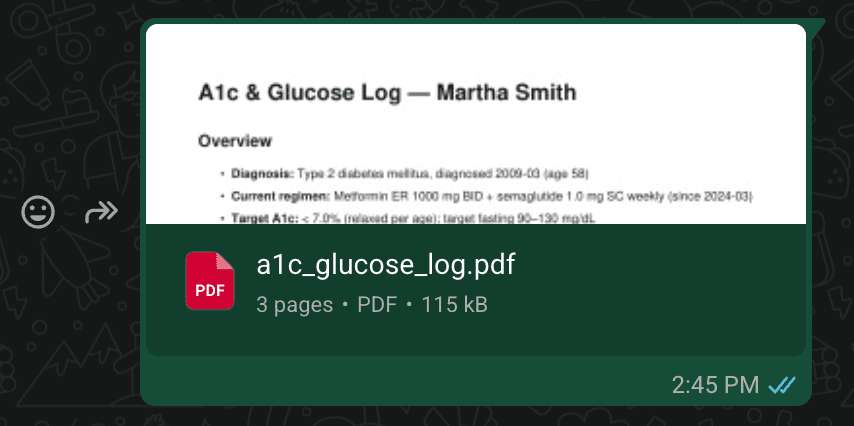
Open WhatsApp Web, find the conversation, and click the document to open it.
- 1
Download the file
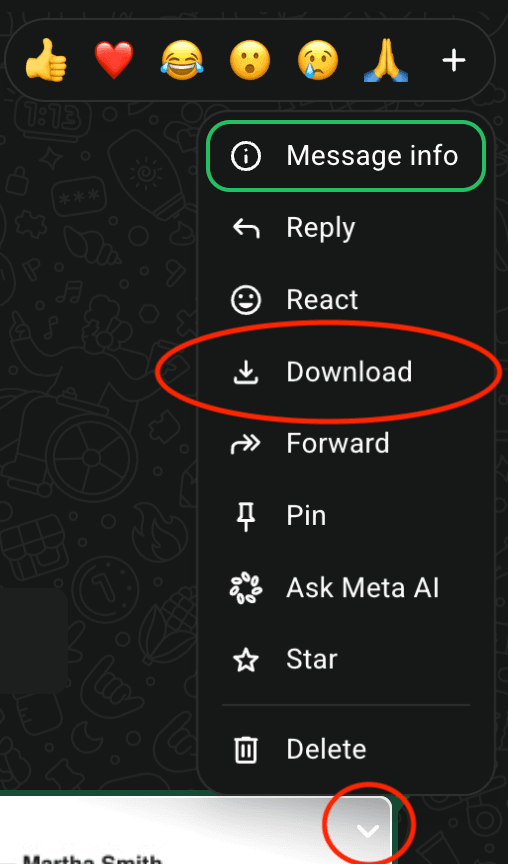
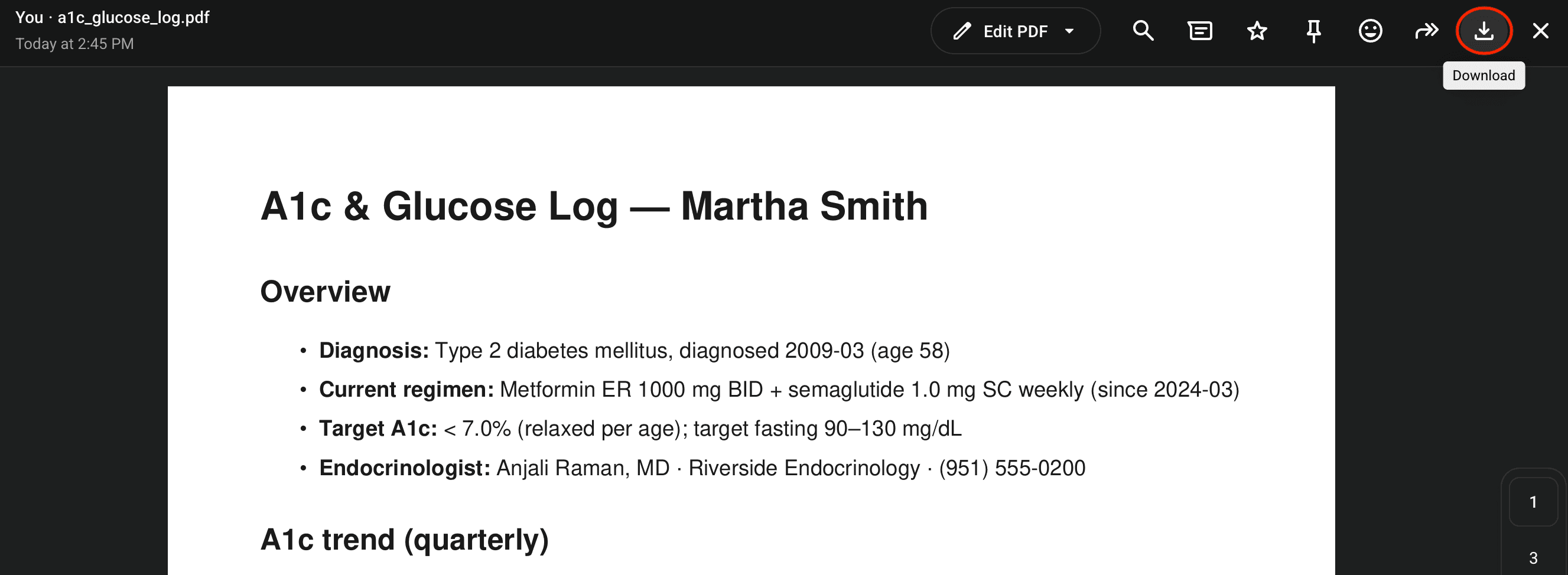
Either open the message menu and choose Download or use the download icon in the document viewer. Most browsers save the file to Downloads.
- 1
Open your Mediphant Vault
In another browser tab, sign in to Mediphant and open Your Vault.
- 2
Start an upload
Select Add New or the Add button, then choose Upload files.
- 3
Choose the downloaded file
Open your Downloads folder, select the WhatsApp attachment, and choose Open.
- 4
Review and upload
Rename the file if needed, then select Upload. Keep the page open until Mediphant confirms that the upload has started.
On iPhone or iPad
- 1
Open the attachment
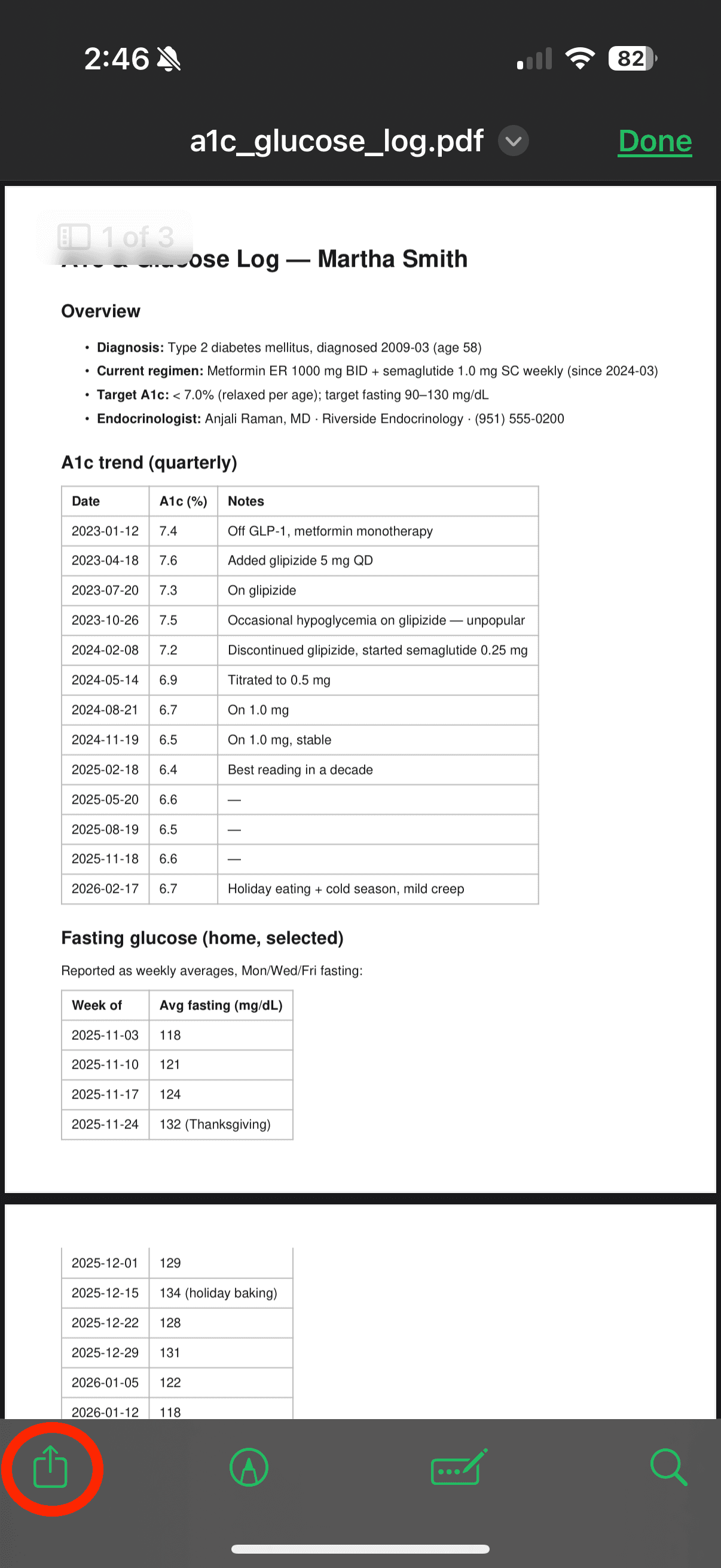
Open WhatsApp, go to the conversation, and tap the document or image you want to transfer.
- 1
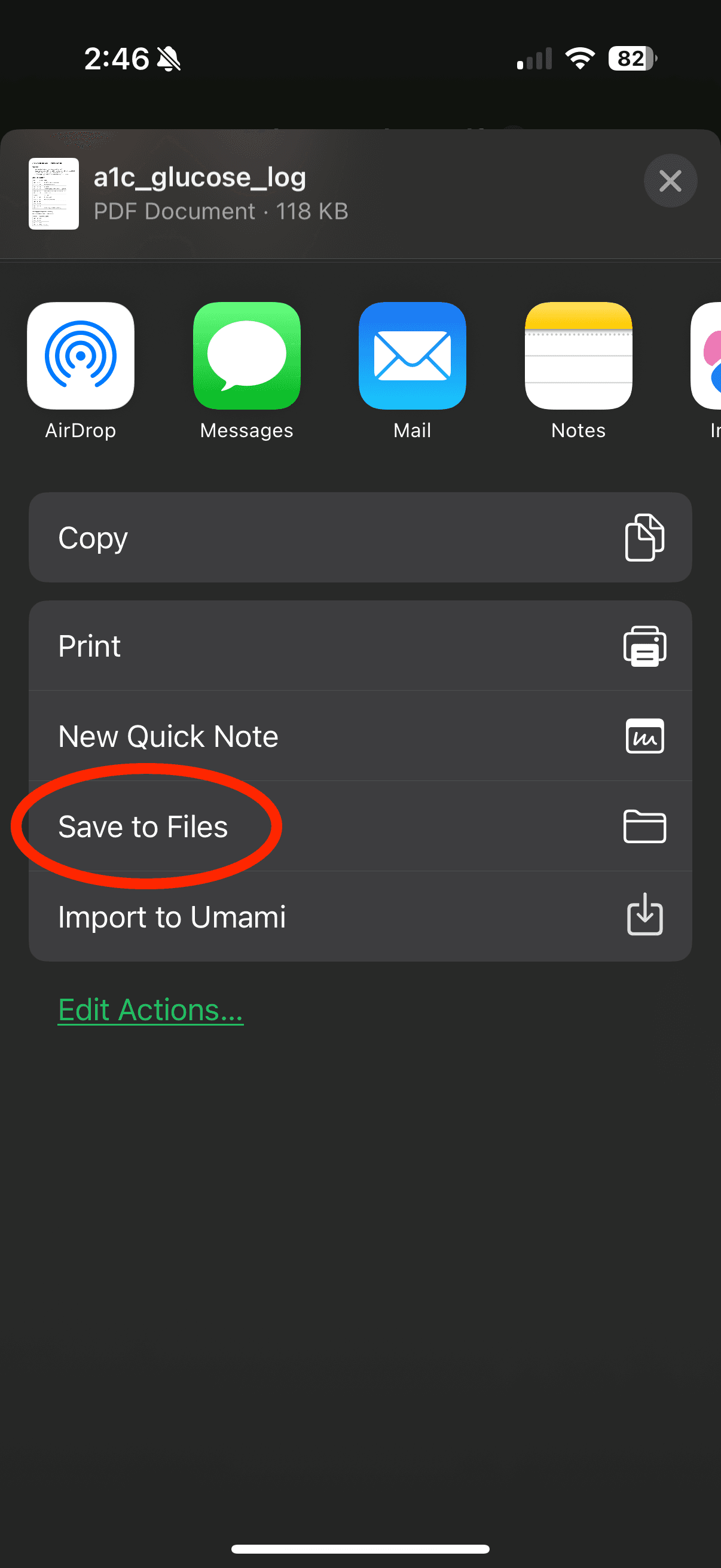
Choose Save to Files
In the Share sheet, scroll to and choose Save to Files. For a photo, you may instead use Save Image.
- 1
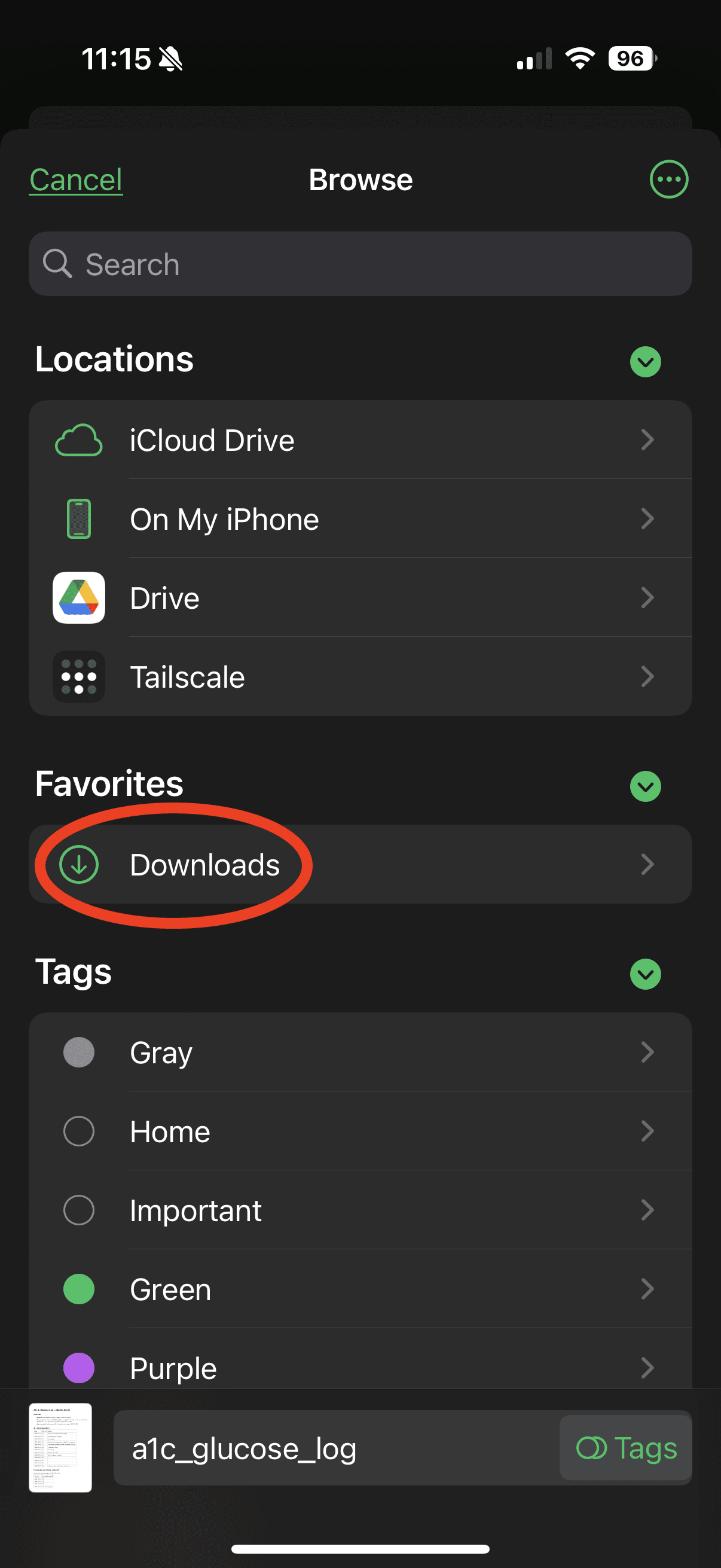
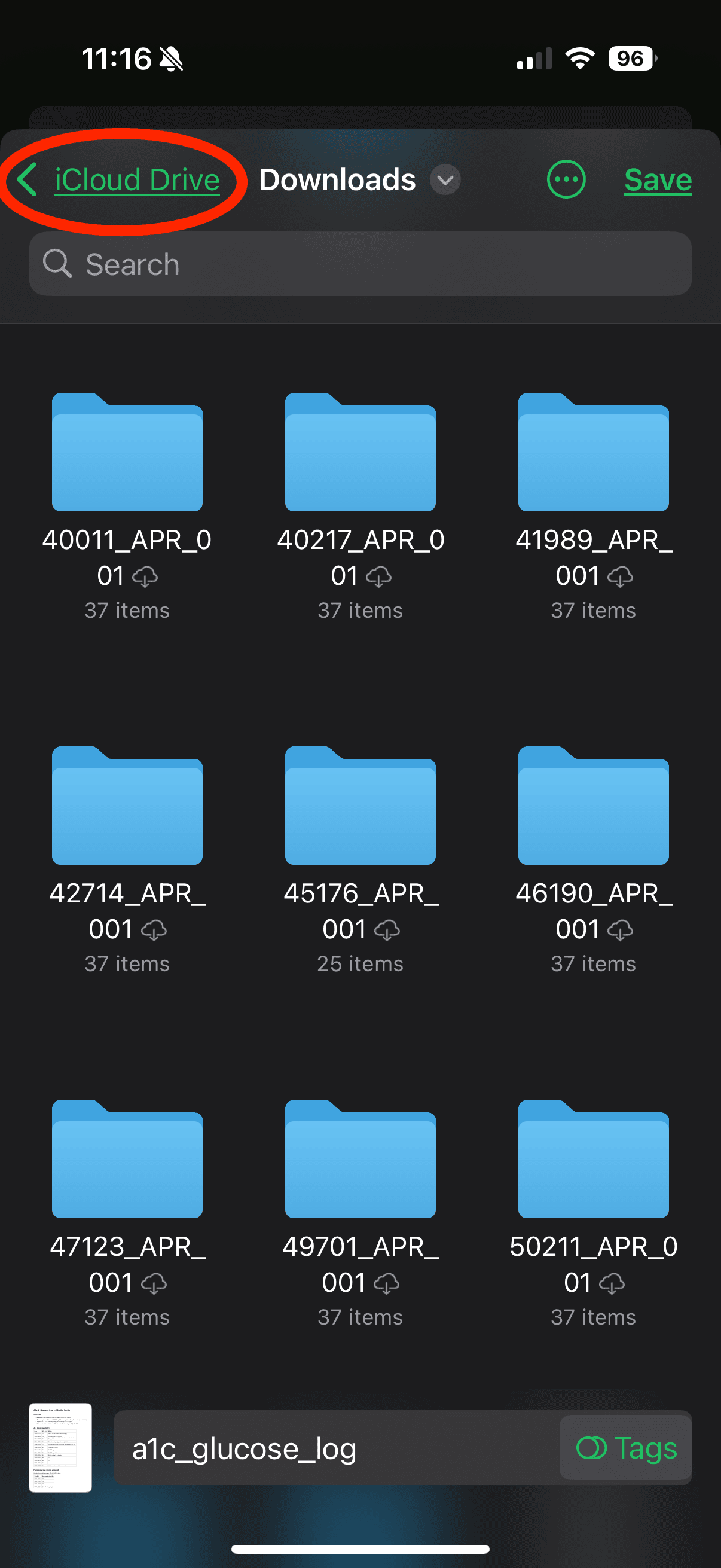
Save it in Downloads
In the Files browser, choose Downloads. Confirm that Downloads appears at the top, then tap Save.
- 1
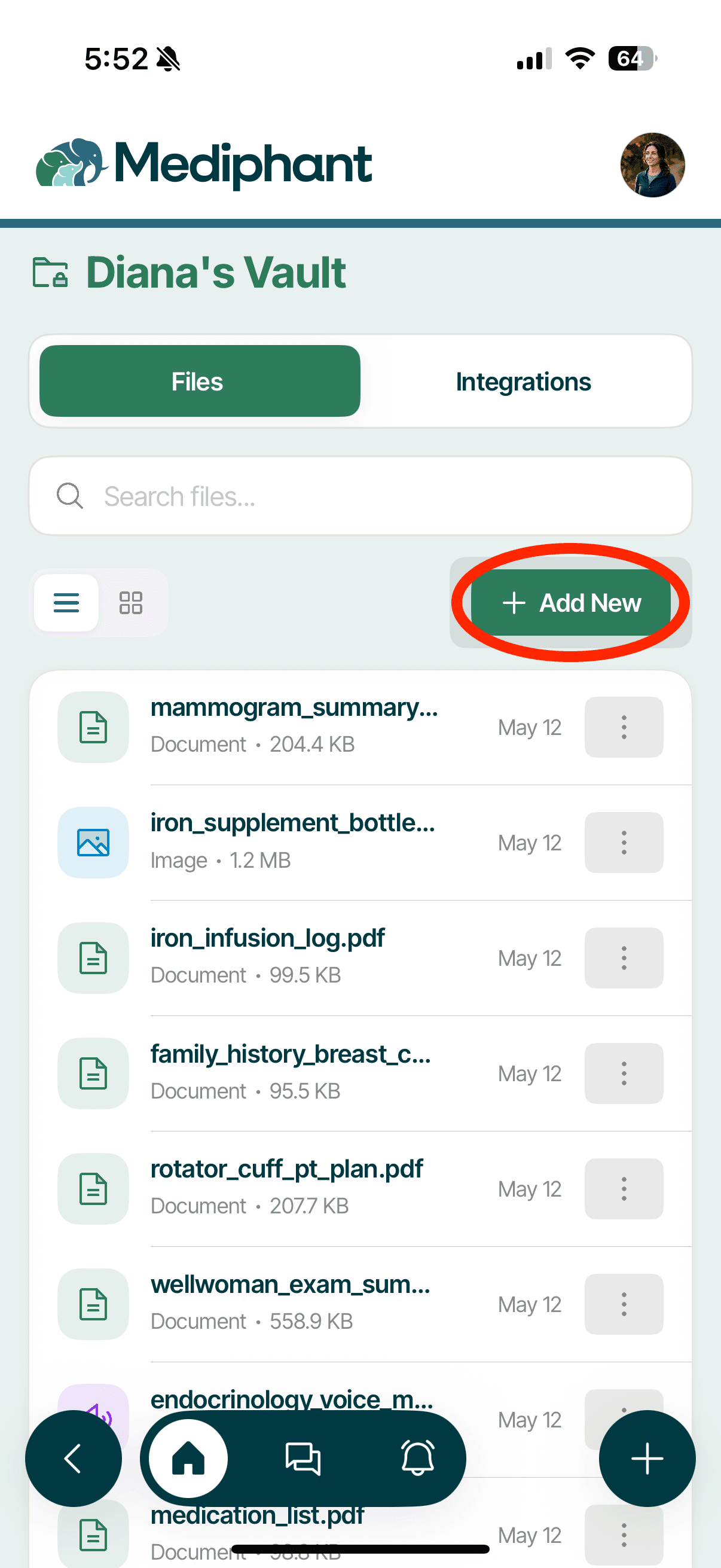
Open your Mediphant Vault
Open Mediphant, go to your Vault, and tap Add New.
- 1
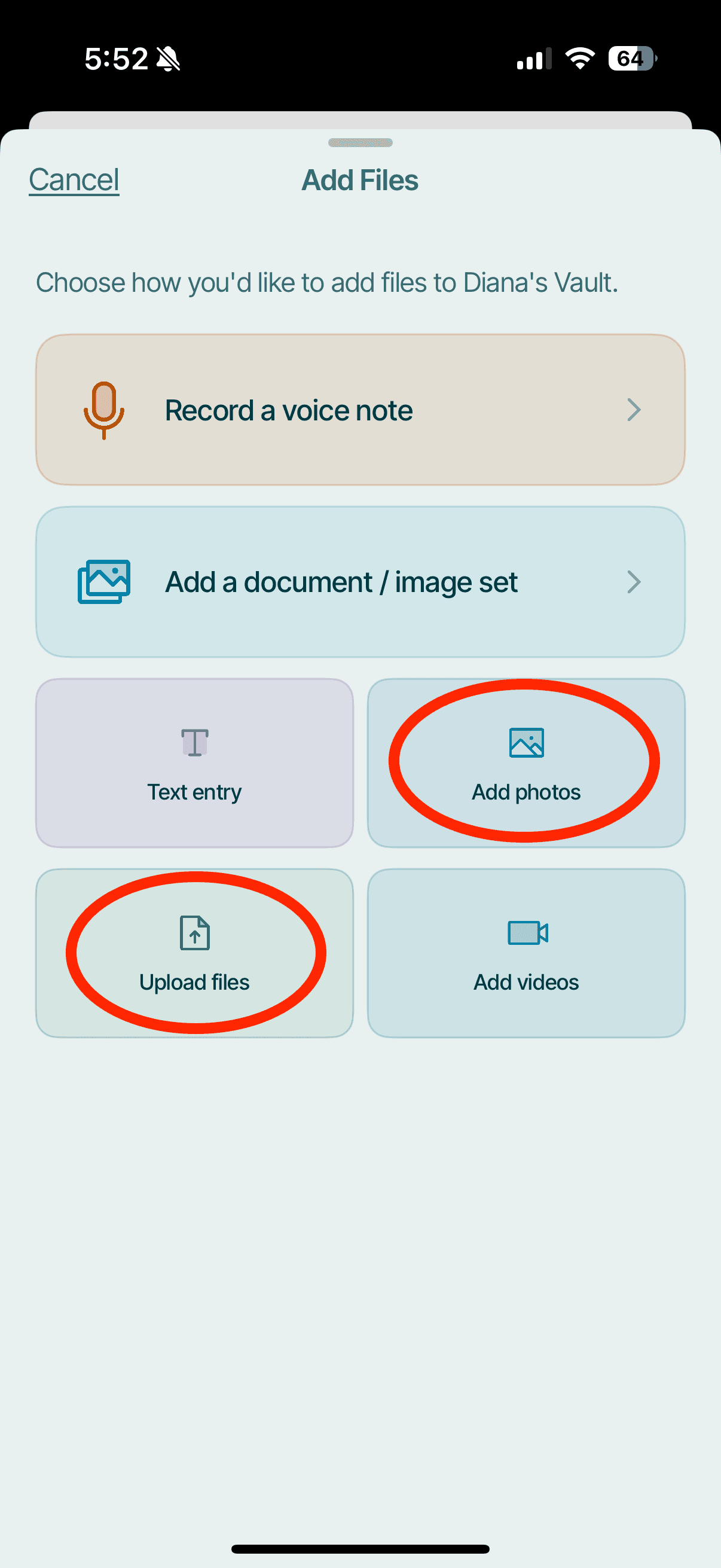
Choose Upload files
In the Add Files sheet, tap Upload files. If you saved an image to Photos instead, choose Add photos.
- 1
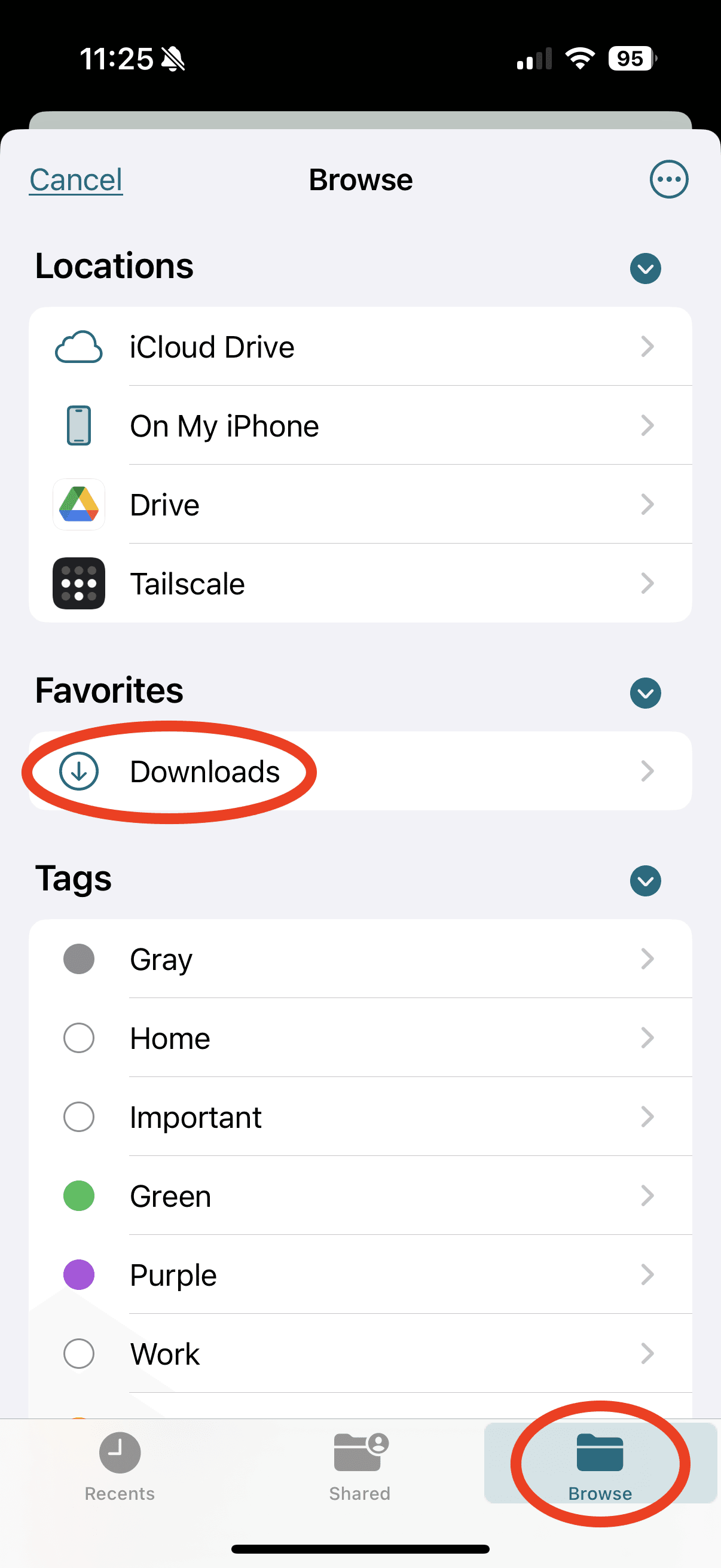
Find the saved file
The Files picker opens. Choose the file from Recents. If it is not visible, tap Browse and open Downloads.
- 1
Review and upload
Check the filename, make any edits, and tap Upload.
On Android
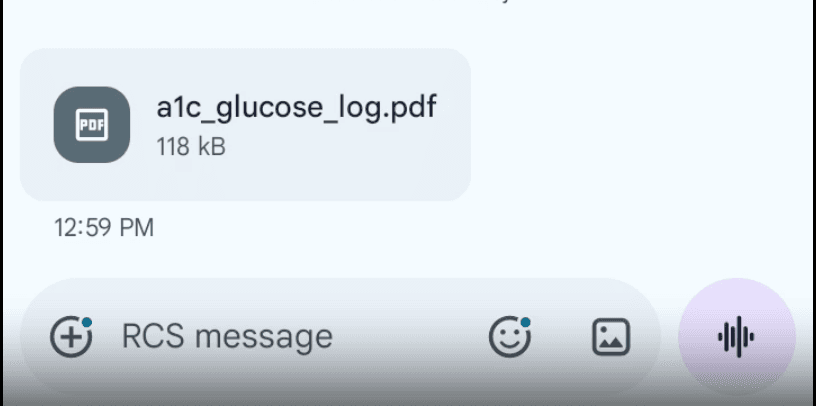
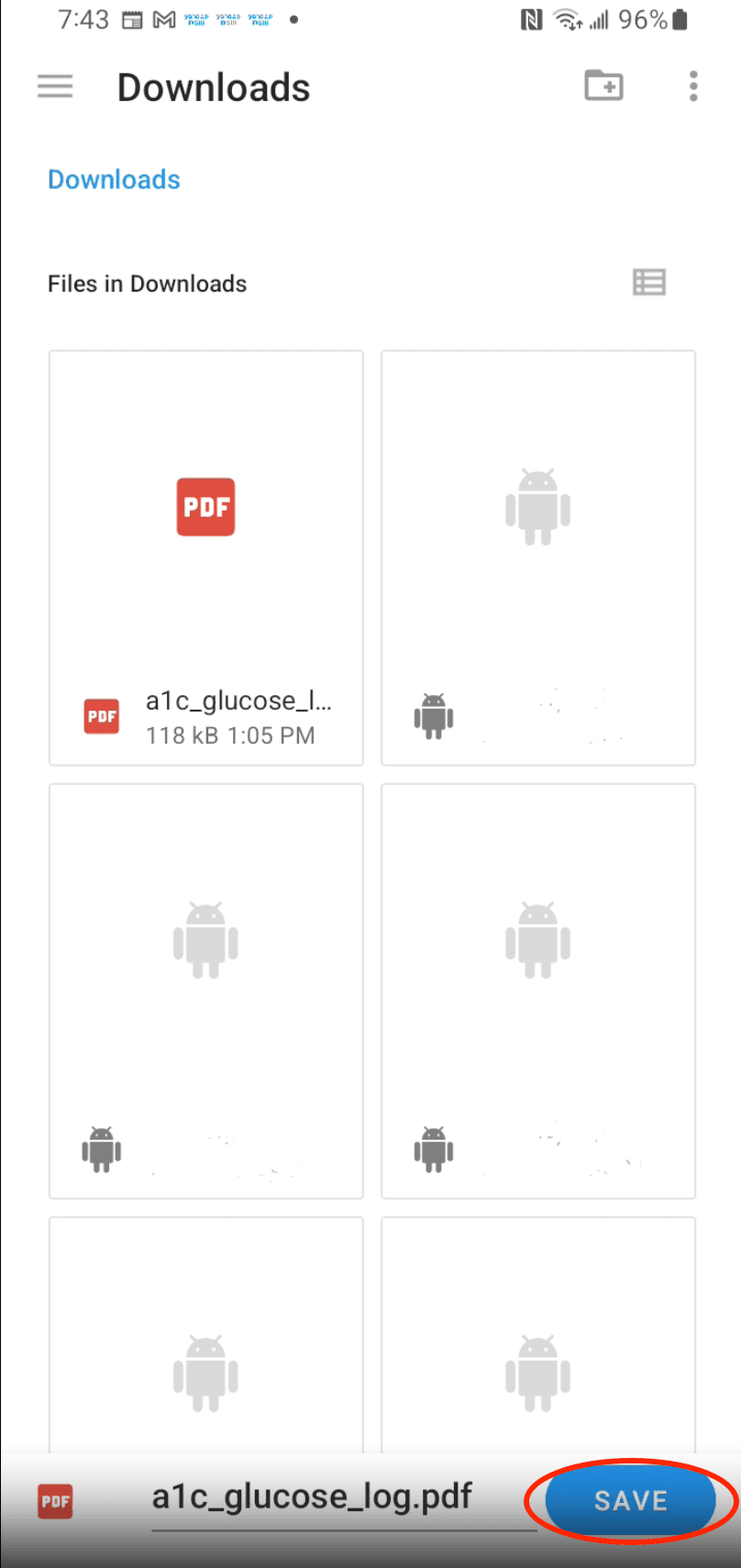
The first screenshots below show Android's messaging and file-saving screens. WhatsApp's buttons may look slightly different on your phone, but the same flow applies: save the attachment to Downloads, then select it from Mediphant.
1. Save the attachment
- 1
Open the conversation
In WhatsApp, open the conversation and tap the document attachment.
- 2
Download or save a copy
Use the download icon or attachment menu. If Android asks where to save it, choose Downloads and tap Save.

2. Start the upload in Mediphant
- 1
Open the Add menu
Open Mediphant and tap the round Add button in the navigation bar.

- 1
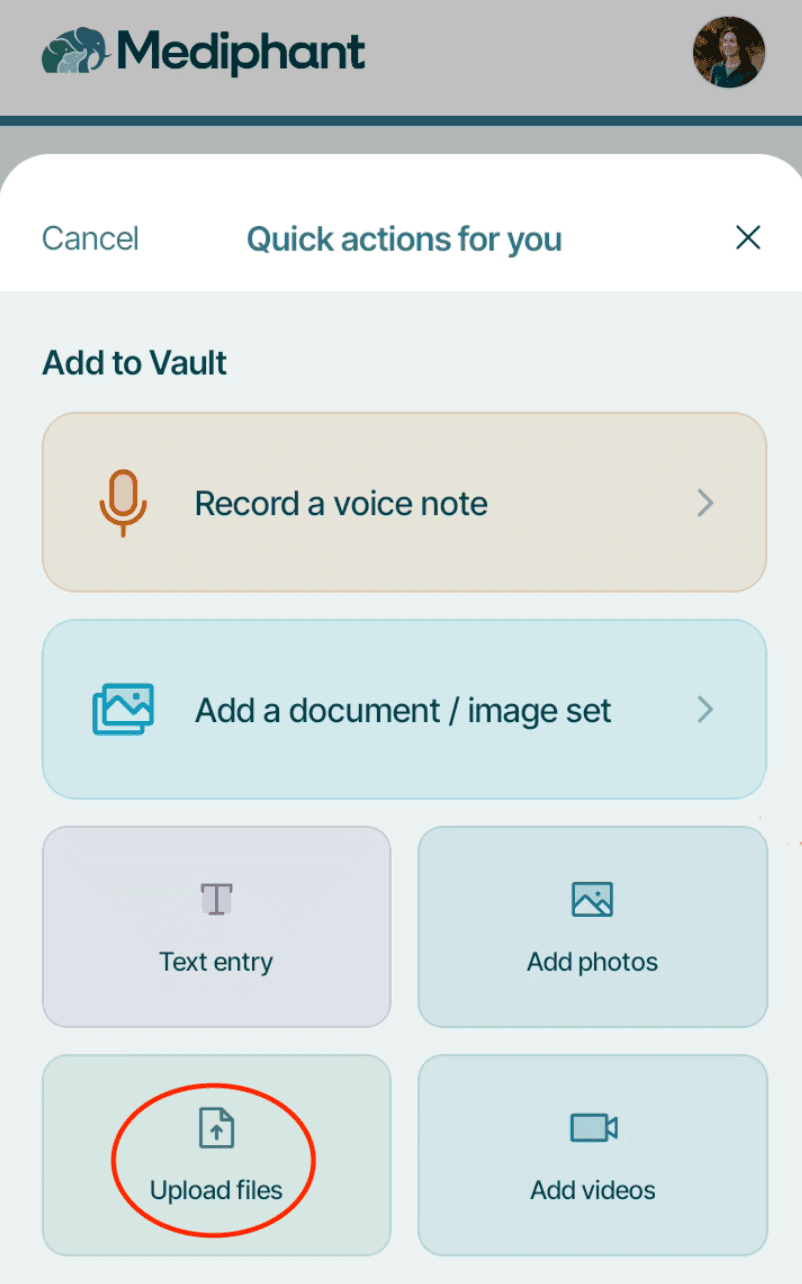
Choose Upload files
Under Add to Vault, tap Upload files.
3. Find and upload the document
- 1
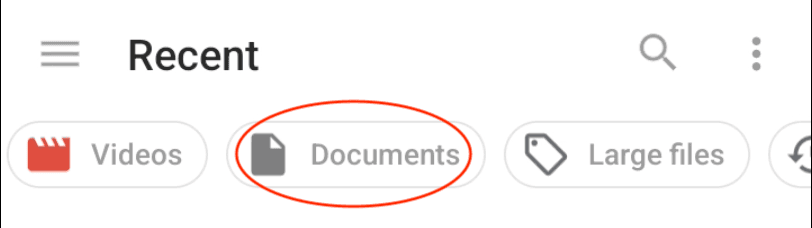
Show documents
If needed, choose the Documents filter in Android's file picker.
- 1
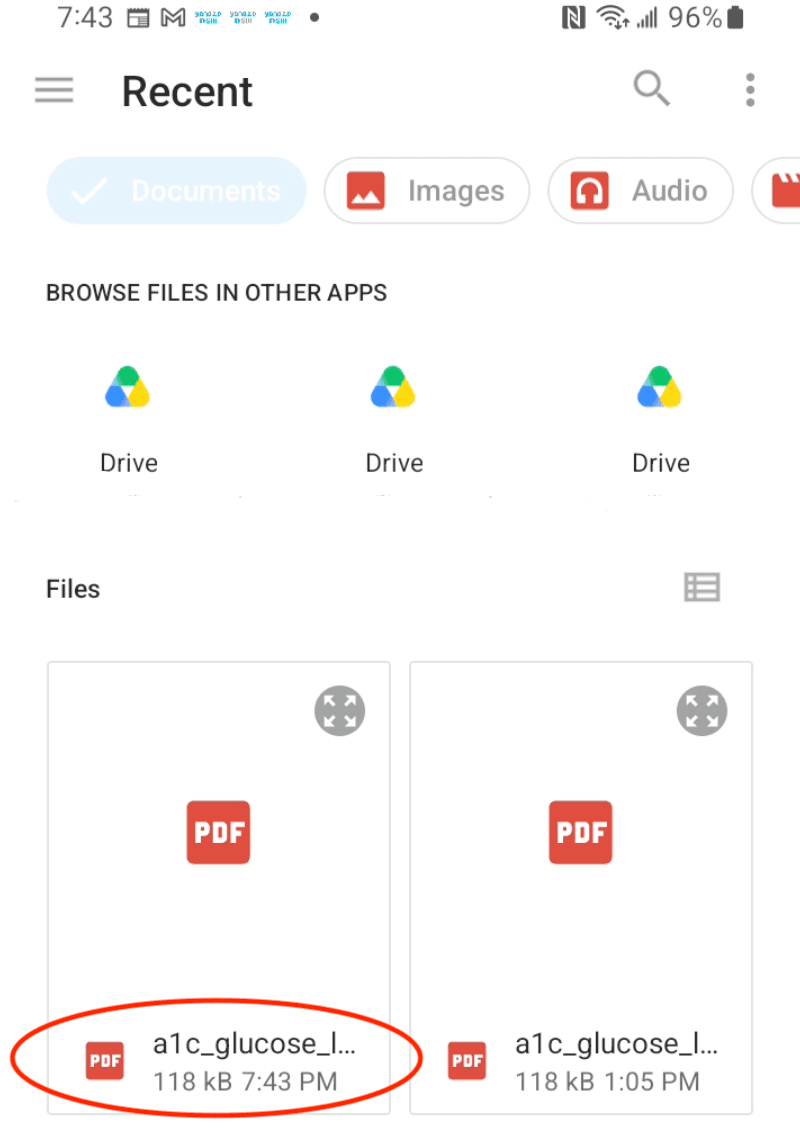
Select the saved file
Find the attachment in Recent or Downloads and tap it.
- 1
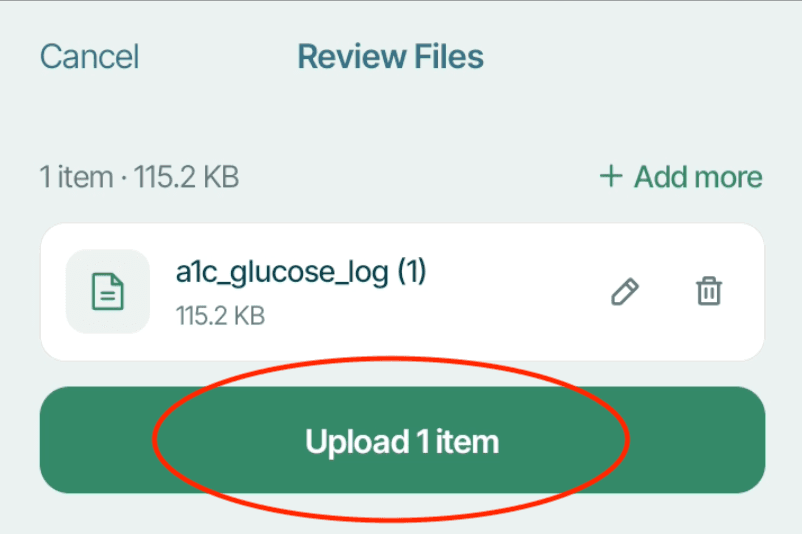
Review and upload
On Review Files, rename the document with the pencil icon if needed, then tap Upload.
Transferring a paper document with several pages? See Uploading a Multi-Page Document. For more ways to add records, see How to Upload a Document.
Common questions